
Get Started
Get started with Capture API in minutes. Learn authentication, URL generation, and how to create your first screenshot or PDF request with SDK and direct API examples.
Welcome to Capture! This document will guide you through the process of making your first request.
API Credentials
In order to authenticate requests send to us, it is necesary for all requests to include user credentials. To get that you need to go to capture console. Once you are are logged in to the console, you will see the API key and API secret in the Dashboard tab. We will use this key and secret for generating links to capture screenshots or PDFs.
Generating links
To capture a screenshot we need to generate a URL which has our authentication credentials and request options. A basic requests URL will have the following parts:
YOUR API KEY, we'll get this from the consoleGENERATED HASH, to validate the request, to make sure its you and not someone elseREQUEST URL & OPTIONS, URL to capture and query string that contains all of the options you want to set
For example, if you want to capture http://www.apple.com/, our request url will be:
https://cdn.capture.page/api_key/generated_hash/image?url=http://www.apple.com/To generate the hash all we need to do is to create an MD5 hash of the API secret and URL
md5(api_secret + 'url=http://www.apple.com/')If you're using JavaScript or Python, we recommend using the official SDKs so you don't have to generate request hashes manually.
Capture also provides official SDKs for Go, Rust, Ruby, and PHP. See the SDK Overview for the full list.
Displaying screenshots
To display the screenshot you can use the link generated in the previous step as image url.
Using HTML tags:
<!-- IMG tag -->
<img src="https://cdn.capture.page/e1ab7054-dabc-48d6-a33f-c18038aac1c8/c87613a5bde6cdc09554e64c998cbffb/image?url=http://www.apple.com/&delay=2" />

<!-- meta tag -->
<meta property="og:image" content="https://cdn.capture.page/e1ab7054-dabc-48d6-a33f-c18038aac1c8/c87613a5bde6cdc09554e64c998cbffb/image?url=http://www.apple.com/&delay=2" />
Using CSS:
.website-preview {
    background-image: url(https://cdn.capture.page/e1ab7054-dabc-48d6-a33f-c18038aac1c8/c87613a5bde6cdc09554e64c998cbffb/image?url=http://www.apple.com/&delay=2);
}
Using Markdown:
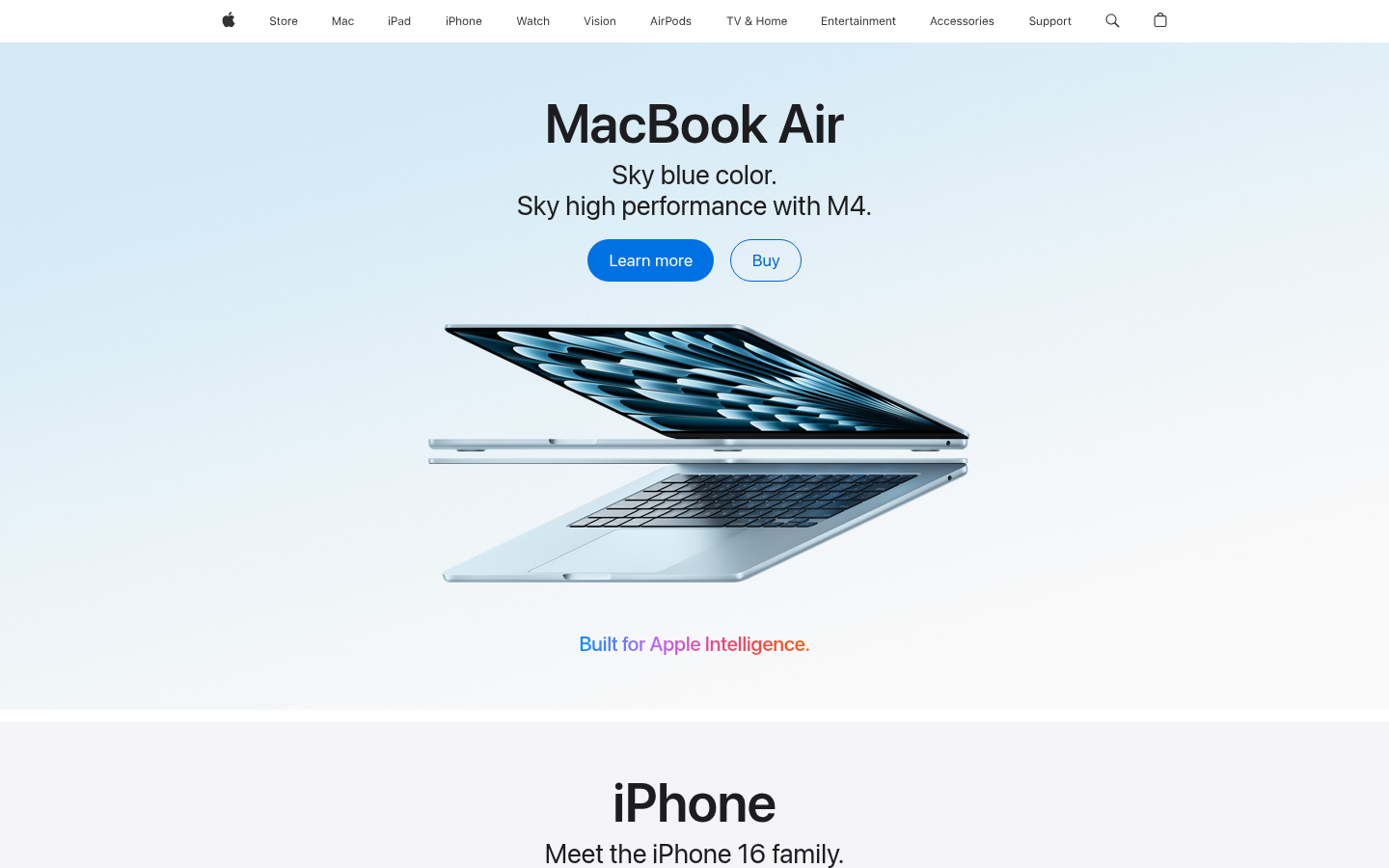Here is a live demo:
Just treat the url as an image url and it will work anywhere you wish!
Sample JavaScript Code
Install the official Node.js SDK:
npm install capture-nodeimport { Capture } from 'capture-node';
const capture = new Capture(
'API_KEY_FROM_CONSOLE',
'API_SECRET_FROM_CONSOLE'
);
const targetUrl = 'https://techulus.xyz';
const imageUrl = capture.buildImageUrl(targetUrl, {
delay: 2,
});
const pdfUrl = capture.buildPdfUrl(targetUrl, {
delay: 2,
});
console.log(imageUrl);
console.log(pdfUrl);Sample Python Code
Install the official Python SDK:
pip install capture-sdkfrom capture import Capture
client = Capture(
"API_KEY_FROM_CONSOLE",
"API_SECRET_FROM_CONSOLE",
)
target_url = "https://techulus.xyz"
image_url = client.build_image_url(target_url, {
"delay": 2,
})
pdf_url = client.build_pdf_url(target_url, {
"delay": 2,
})
print(image_url)
print(pdf_url)